

New fields ‘Quantity Reduction Behavior’ and ‘Quantity Reduction Window” are available on the ‘Work 365 Product Form’ and ‘Work 365 Subscription Form’.
These fields will allow Work 365 users to control the quantity reduction for this product on the subscription page.
The change window will be set automatically if it’s an NCE product.
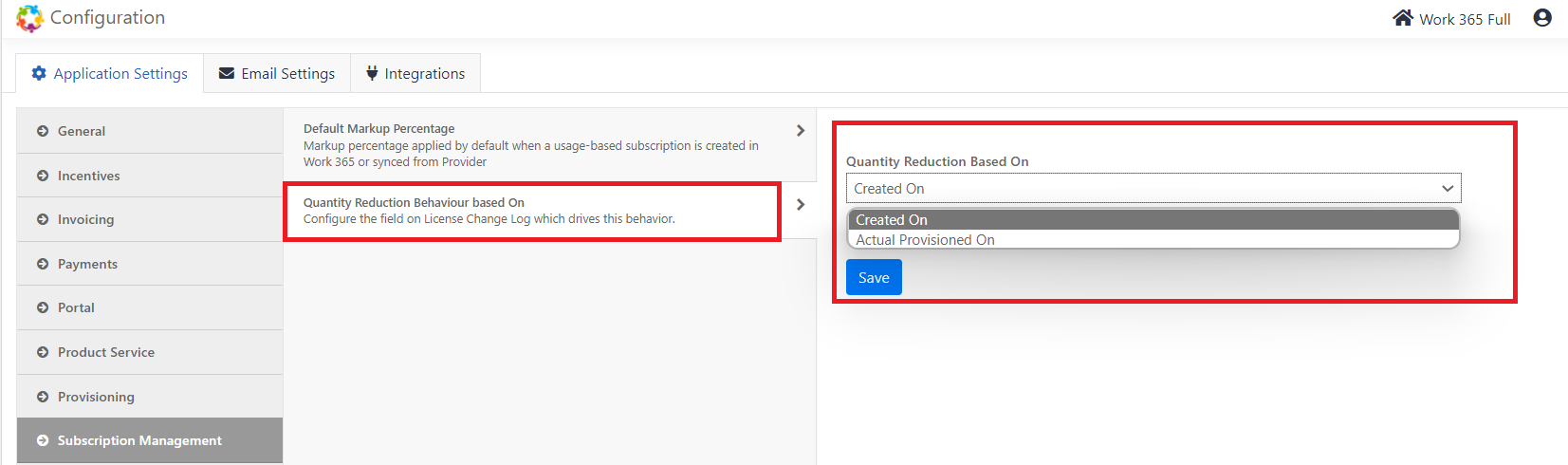
The quantity reduction behavior can be based on ‘Created On’ Date or ‘Actual Provisioned on Date’. The new settings are available in the Admin Hub
Navigation: Administration ➤ Admin Hub ➤ Subscription management ➤ Quantity reduction behavior-based On
Below are the new fields on the Subscription form and Product Form
Quantity Reduction:
This field allows users to decide whether to allow the changes or not.
This field has three Options: Allow, Disallow and Allow within the window
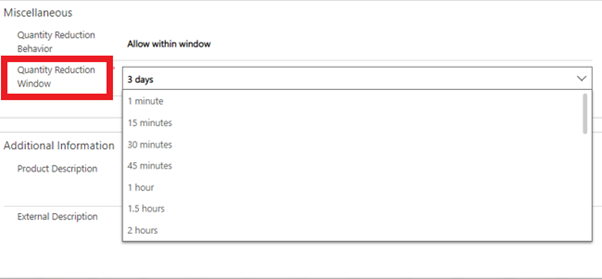
If the ‘Quantity Reduction’ is marked as ‘Allow within a window’ it will enable the user to add the time frame in the field ‘Quantity Reduction Window’.

Quantity Reduction Window:
It allows the Work 365 user to decide the time timeframe within which the quantity reduction will be allowed for the subscription. Work 365 users allow the reduction starting from 1minute to within 3 hrs.
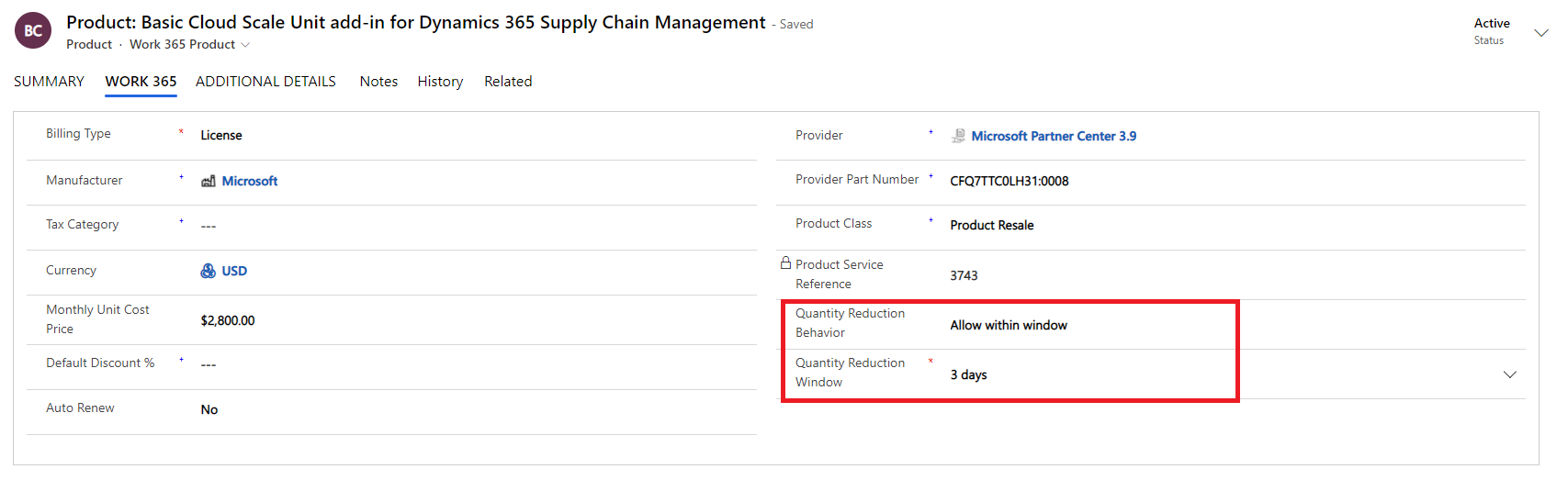
Product form
‘Quantity Reduction Behavior’ and ‘Quantity Reduction Window” are available on the ‘Work 365 Product Form’ under the Work 365 Tab.
Navigation: Product Management ➤ Product ➤ Work 365 Tab
Once the setting is done on the Product form the value for these fields will automatically populate on the subscription form under the ‘Advanced’ Tab after selecting the Product on the Subscription. The users also get the flexibility to change the value for this field on the subscription form as well.
Please note: The change window comes through automatically if it’s an NCE product
Subscription Form
Work 365 users can now control the quantity reduction from the Subscription form.
New fields ‘Quantity Reduction Behavior’ and Quantity Reduction Window” on the Subscription Form under the Advanced Tab.
Navigation: Subscription management ➤ Subscription ➤ Advanced Tab ➤ Miscellaneous


